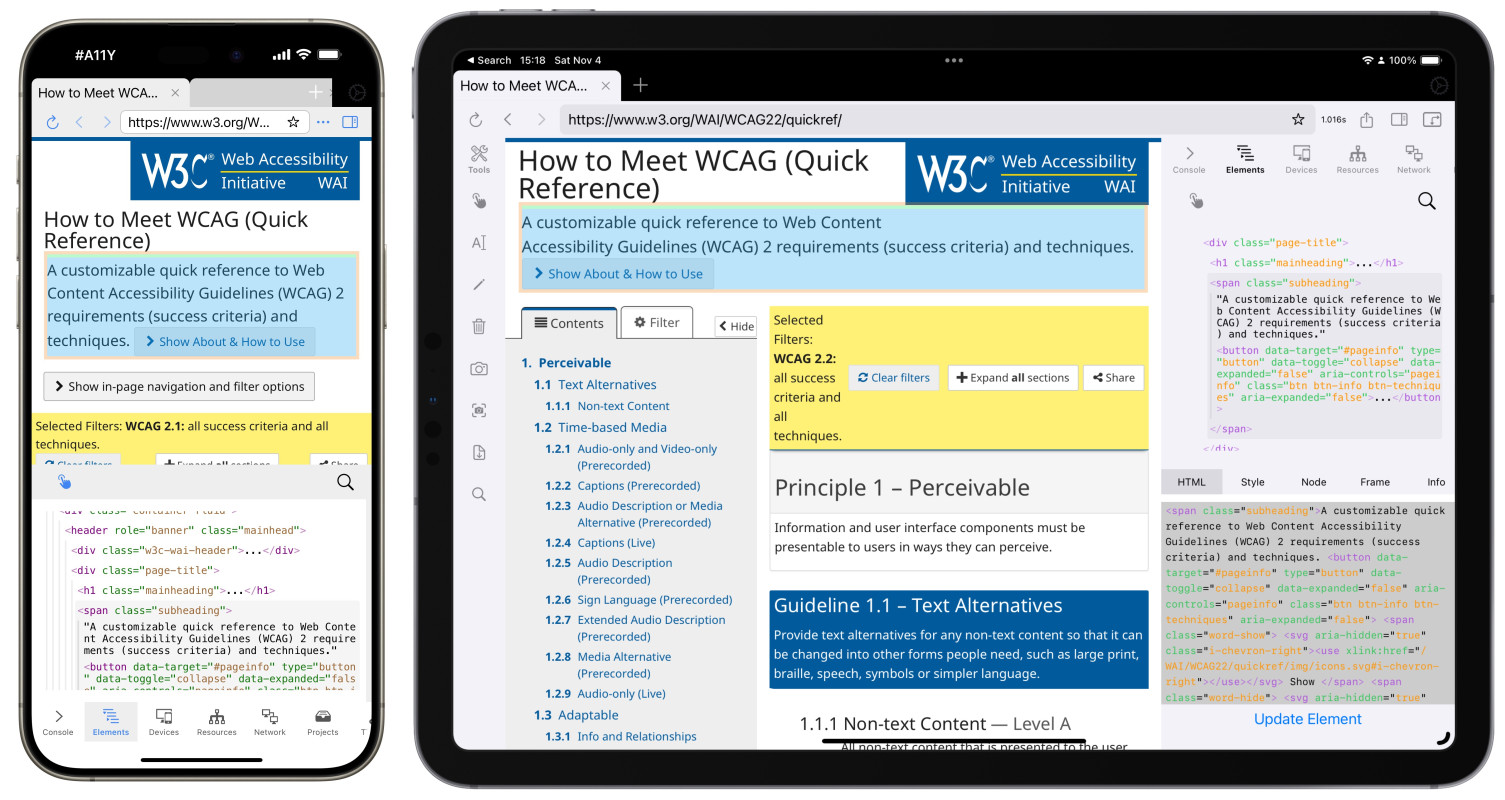
Inspecting websites and web views on iOS devices
While it is often sufficient to test the mobile view of websites and applications on the desktop, with desktop browsers, it’s sometimes not enough: Some websites use device sniffing to hash out which device is used and deliver different code to users. In other instances, the web view is part of an application.
Being able to inspect and look at the code in these views is essential to give good feedback to developers implementing these views.
Inspect Browser (websites only)
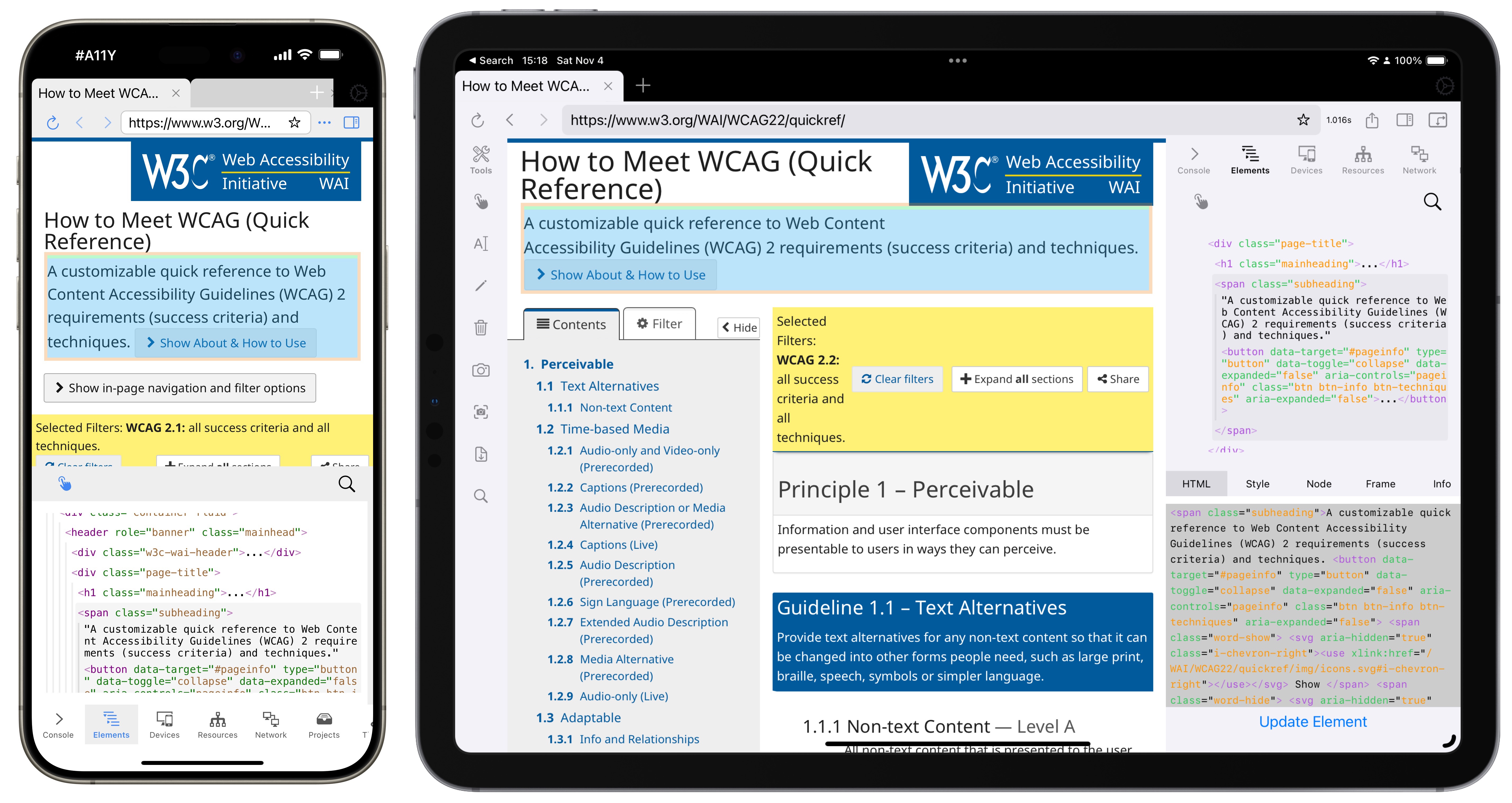
For casual use and availability on the go (without tethering to a Mac), Inspect Browser does the job. It works great on iOS and iPadOS and provides all web inspection needs: Logging on the console, inspecting elements, finding out accessible names, and much more.
I personally use it only to quickly get to the bottom of an HTML structure or figuring out why something is announced/shown weirdly while using VoiceOver or Voice Control. It is a separate browser, so you have to log in and/or navigate to where the issue is.
Support Eric’s independent work
I'm a web accessibility professional who cares deeply about inclusion and an open web for everyone. I work with Axess Lab as an accessibility specialist. Previously, I worked with Knowbility, the World Wide Web Consortium, and Aktion Mensch. In this blog I publish my own thoughts and research about the web industry.
Safari on macOS (websites and web views)
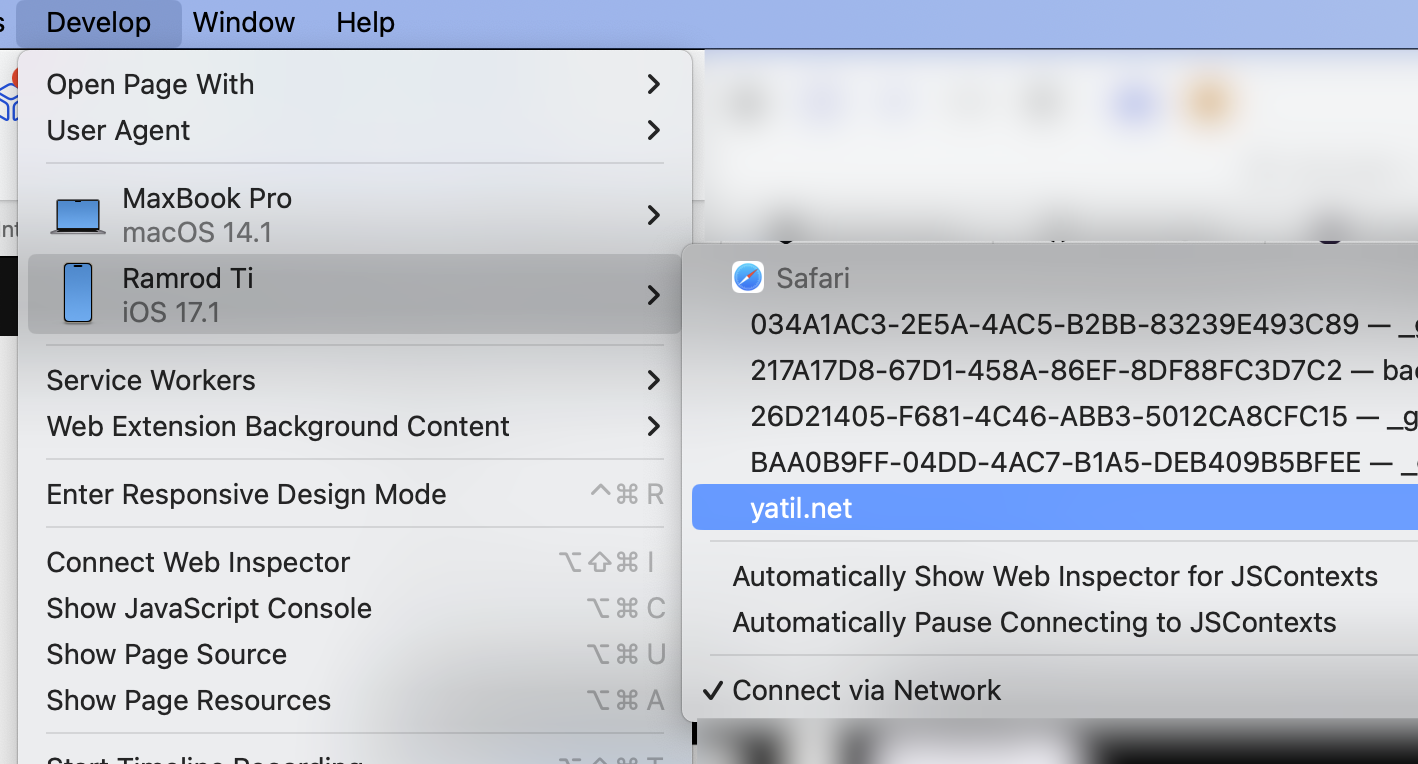
For websites and web views where the small-screen inspector in Inspect Browser does not cut it, you can use Safari on macOS to connect to the iPhone/iPad. You need to set up your device once:
- On your Mac: Switch on Developer mode in Safari by going to Preferences → Advanced and check the “Show features for web developers” checkbox.
- On your iPhone or iPad: Go to Settings → Safari → Advanced and switch on “Web Inspector”.
When you attach your iPhone or iPad to the Mac using a Lightning or USB-C cable, open Safari and go to the Develop menu. Select the device and then the website and a inspector window opens. It has the full capabilities of the desktop Safari inspector, which is very capable.
From my experience, everything that is in a normal web view can be easily inspected, even in non-iOS-Safari apps. More custom implementation sometimes suppress the ability to inspect them. I can easily inspect web views in Mona (App Store Link), my favorite Mastodon client, but have no chance in the LinkedIn app.
Check “Connect via Network” to get rid of the need of a cable connection.
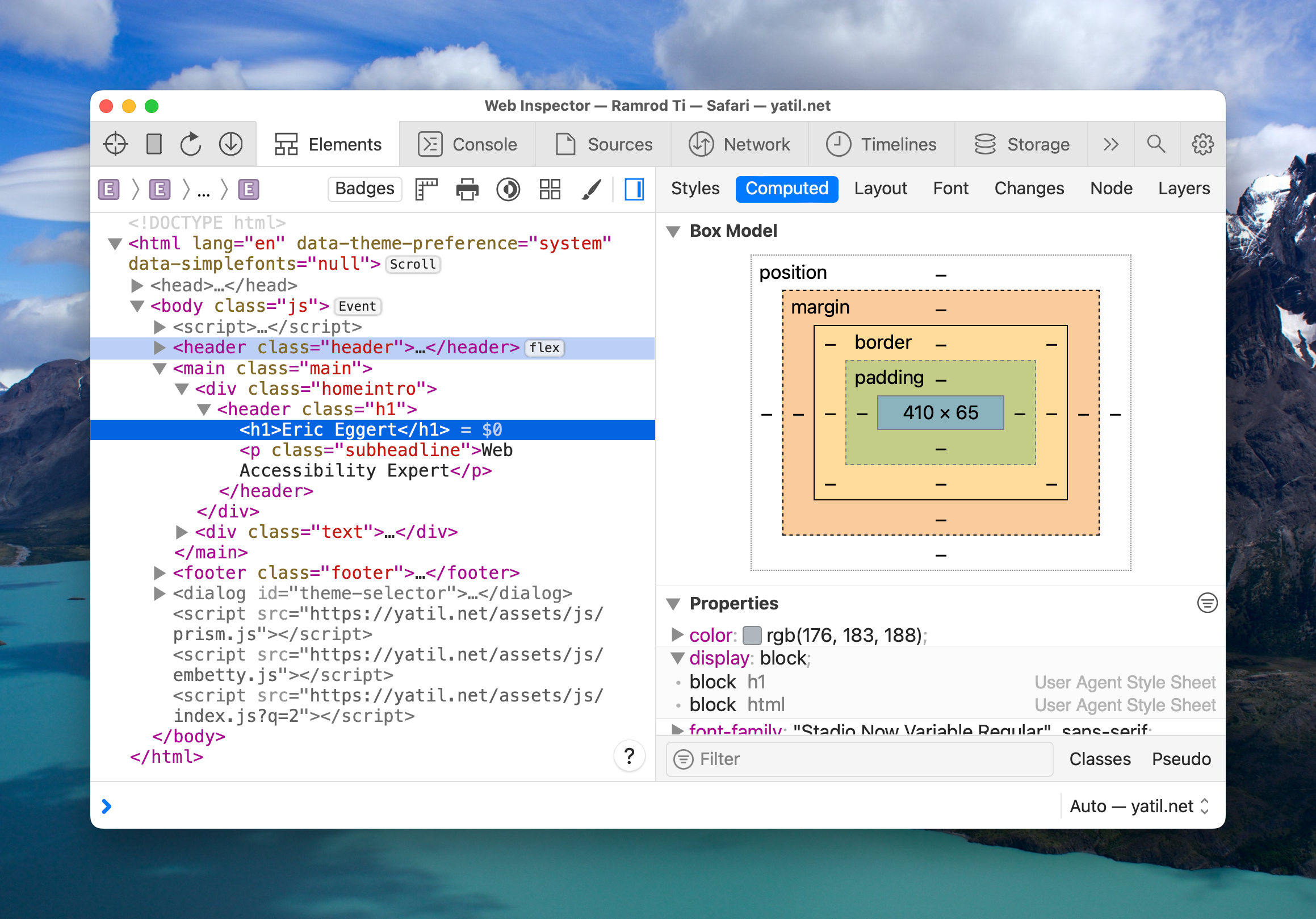
You can even use the crosshair button and select elements on the iPhone/iPad by touch.
Comments & Webmentions