Use the accessibility shortcuts on iOS to speed up your testing workflow
You can switch VoiceOver (and Voice Control) on in the iOS settings on iPhone and iPad. But this is very cumbersome if you are in the process of testing an app or website. There are quicker ways:
Using Siri
Siri switches VoiceOver on where you are at the moment, if you invoke it using the command “Hey Siri, VoiceOver on”. Switching VoiceOver off works by issuing “Hey Siri, VoiceOver off”.
But this way is cumbersome, and if you, like me, switch VoiceOver on and off many, many times during a testing session, unpractical. Here are some even better shortcuts:
Support Eric’s independent work
I'm a web accessibility professional who cares deeply about inclusion and an open web for everyone. I work with Axess Lab as an accessibility specialist. Previously, I worked with Knowbility, the World Wide Web Consortium, and Aktion Mensch. In this blog I publish my own thoughts and research about the web industry.
Accessibility Shortcut (all iPhones and iPads)
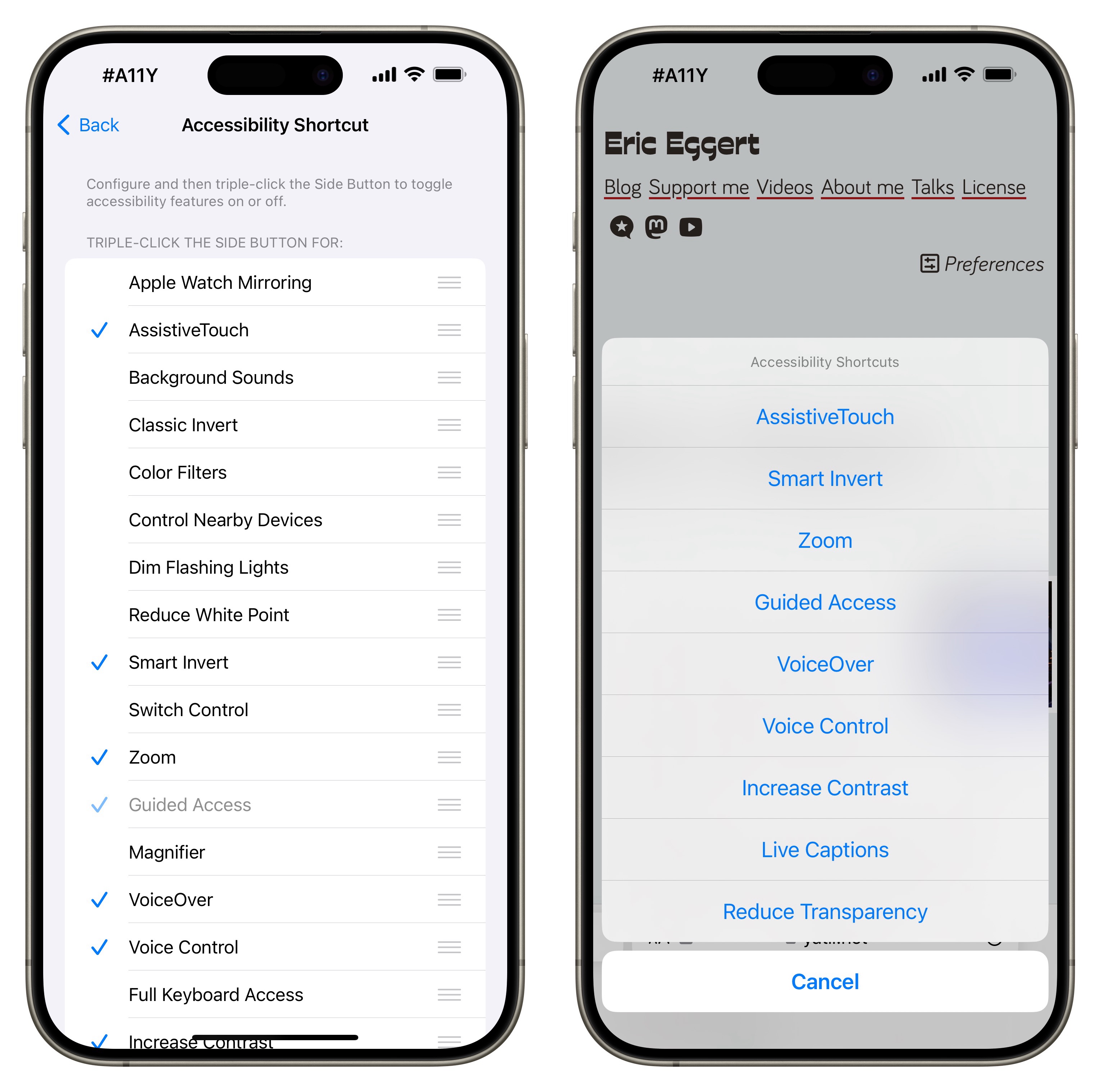
There is literally a shortcut for this. Go to Settings → Accessibility → Accessibility Shortcut and check the accessibility features you use in your testing. Now, if you press the sleep/wake button three times in quick succession, a menu pops open that allows you to switch on and off the checked accessibility features. If you only check VoiceOver, it is switched on/off directly. See the official Apple documentation about the Accessibility Shortcut.
Control Center (all iPhones and iPads)

You can put accessibility buttons into Control Center (the panel that appears when you swipe down from the top right of the screen). Go to Settings → Control Center and add accessibility features under “more controls”. I have text resize in there to be able to quickly test that in apps. But you can also add “Accessibility Shortcuts” which brings up the menu as configured above.
It’s good for lesser used features, but as the popup immediately closes after selecting VoiceOver in the triple-press sleep/wake button scenario, the menu stays active here. Navigating out of it to the app you want to test is quite cumbersome, so I tend to not use it to invoke VoiceOver.
See Apple’s documentation of Control Center customization.
Back Tap (all iPhones)
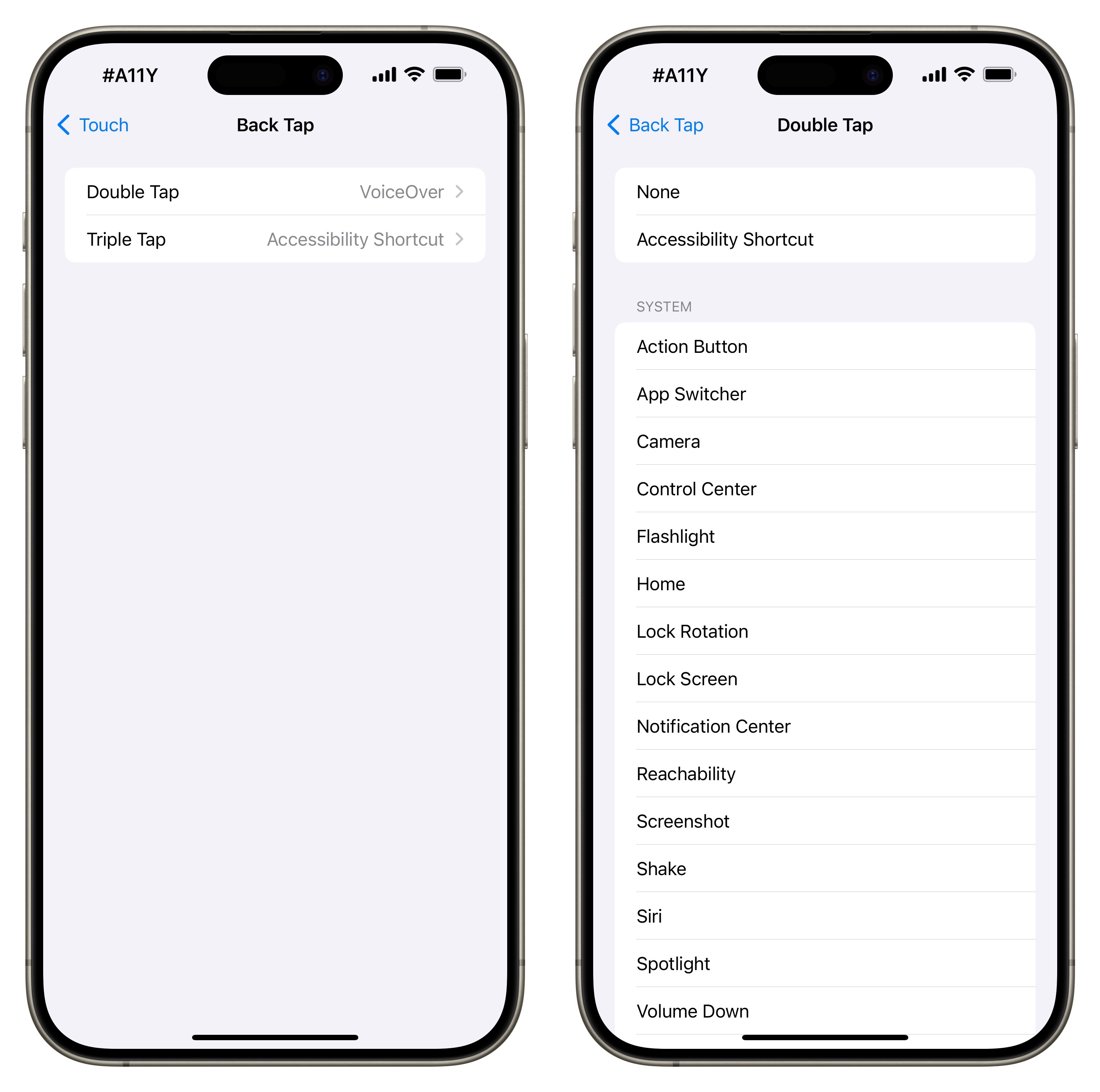
If you want a little more flexibility, the Back Tap gesture allows you to gently tap the back of your iPhone twice or three times to launch either the aforementioned Accessibility Shortcut, or a number of other functionality. You can, for example enable VoiceOver with two back taps and the Accessibility Shortcut on three taps.
To configure it, go to Settings → Accessibility → Touch → Back Tap and select Double Tap or Triple Tap. Then select the Accessibility Shortcut or the function you want to invoke from the list.
(The Back Tap section has been added after I was reminded of this functionality by Shelly’s mention in her article The iPhone 15 Pro brings tangible accessibility benefits on sixcolors.)
Action Button (iPhone 15 Pro and later)
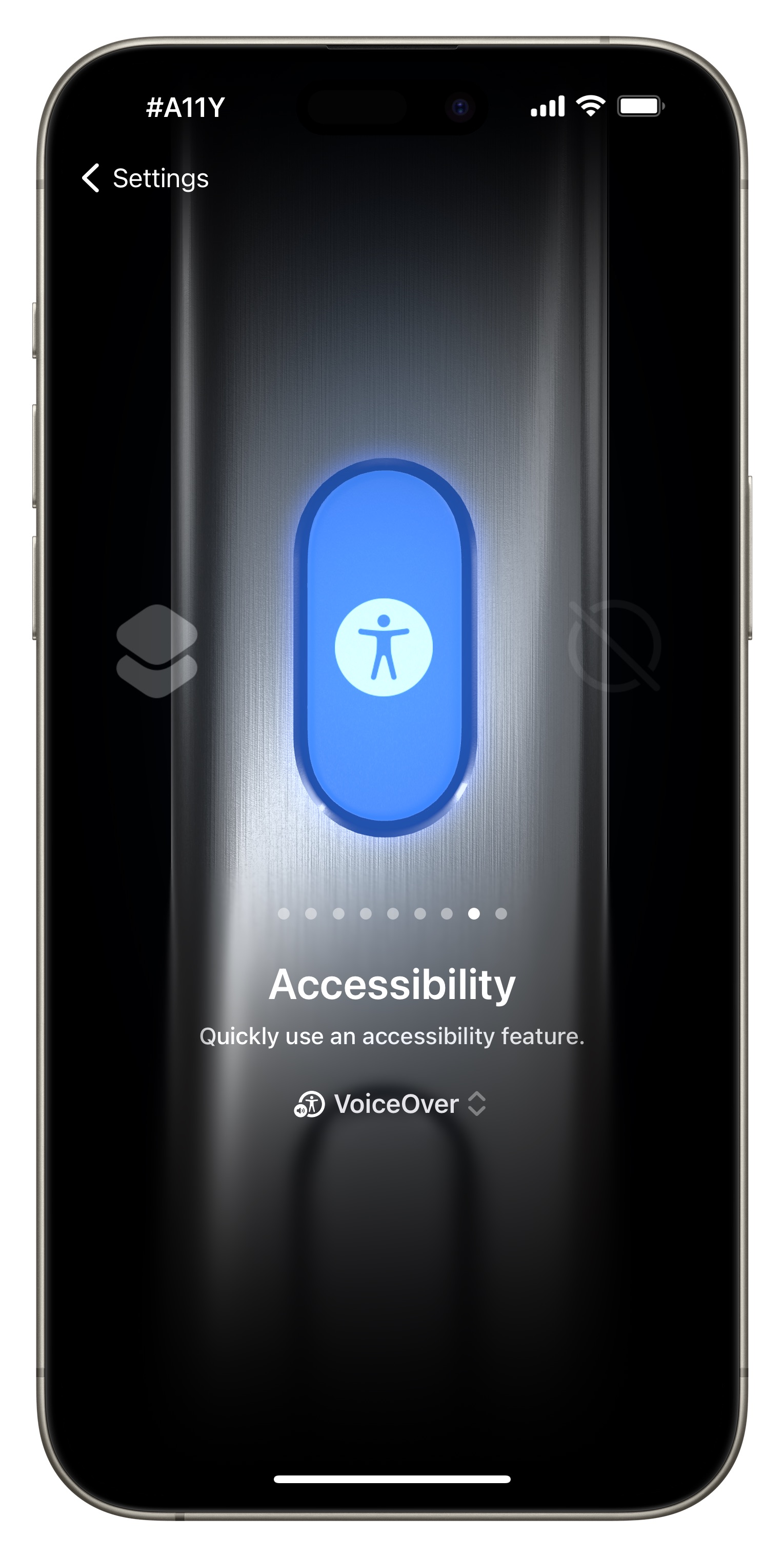
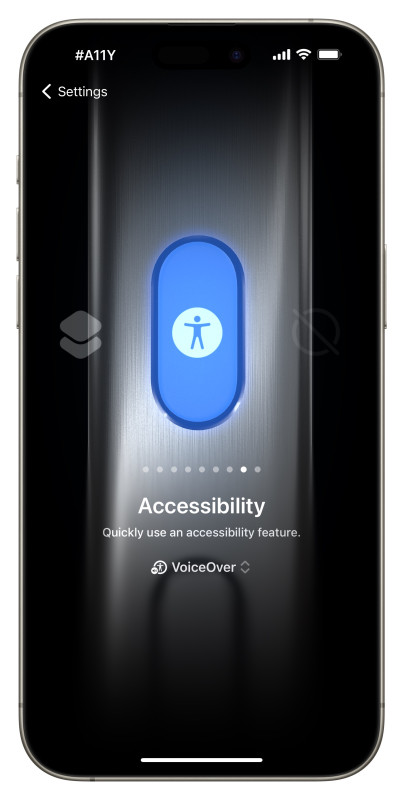
You can also put an accessibility feature, like VoiceOver, directly on the new iPhone 15 Pro Action Button. In Settings, go to Action Button and swipe almost all the way to the right to the “Accessibility” option and chose VoiceOver. Now, whenever you invoke the Action Button (press and hold briefly), VoiceOver is quickly turned on or off. See Apple’s documentation about the Action Button.
Using a combination of these shortcuts, you can make it really easy testing with accessibility features on iOS.
Comments & Webmentions